Jira
Overview
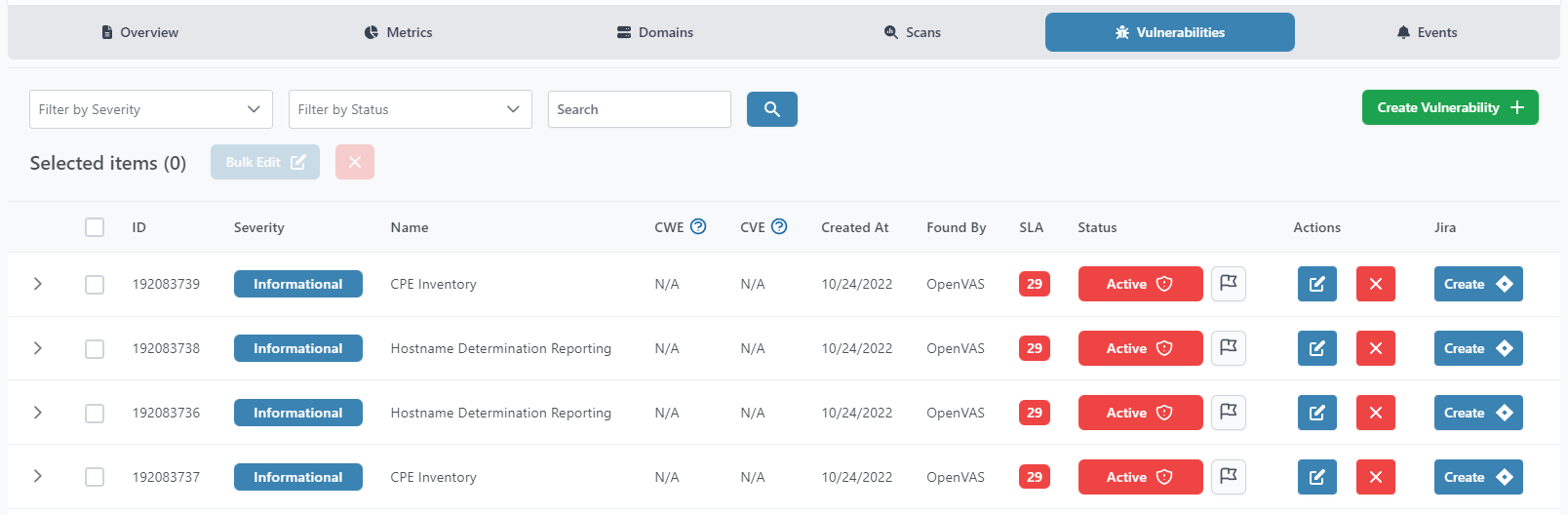
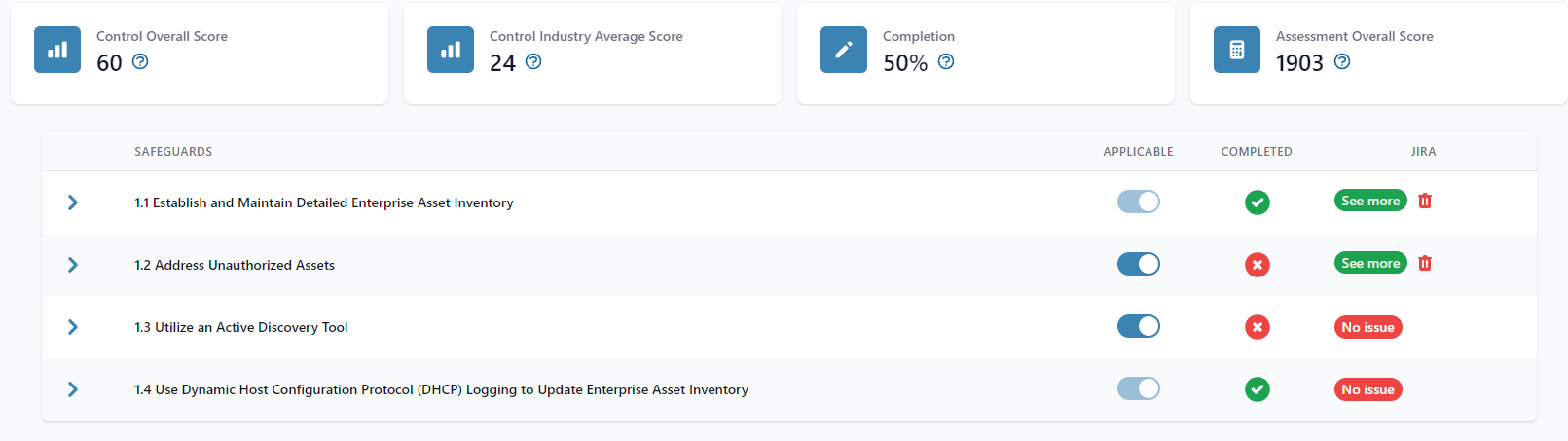
Several modules and submodules have specific pages or sections that offer the ability to integrate them with Jira. For example, tables and lists where Jira can be integrated can show an additional column if Jira has been already integrated.
How to Integrate
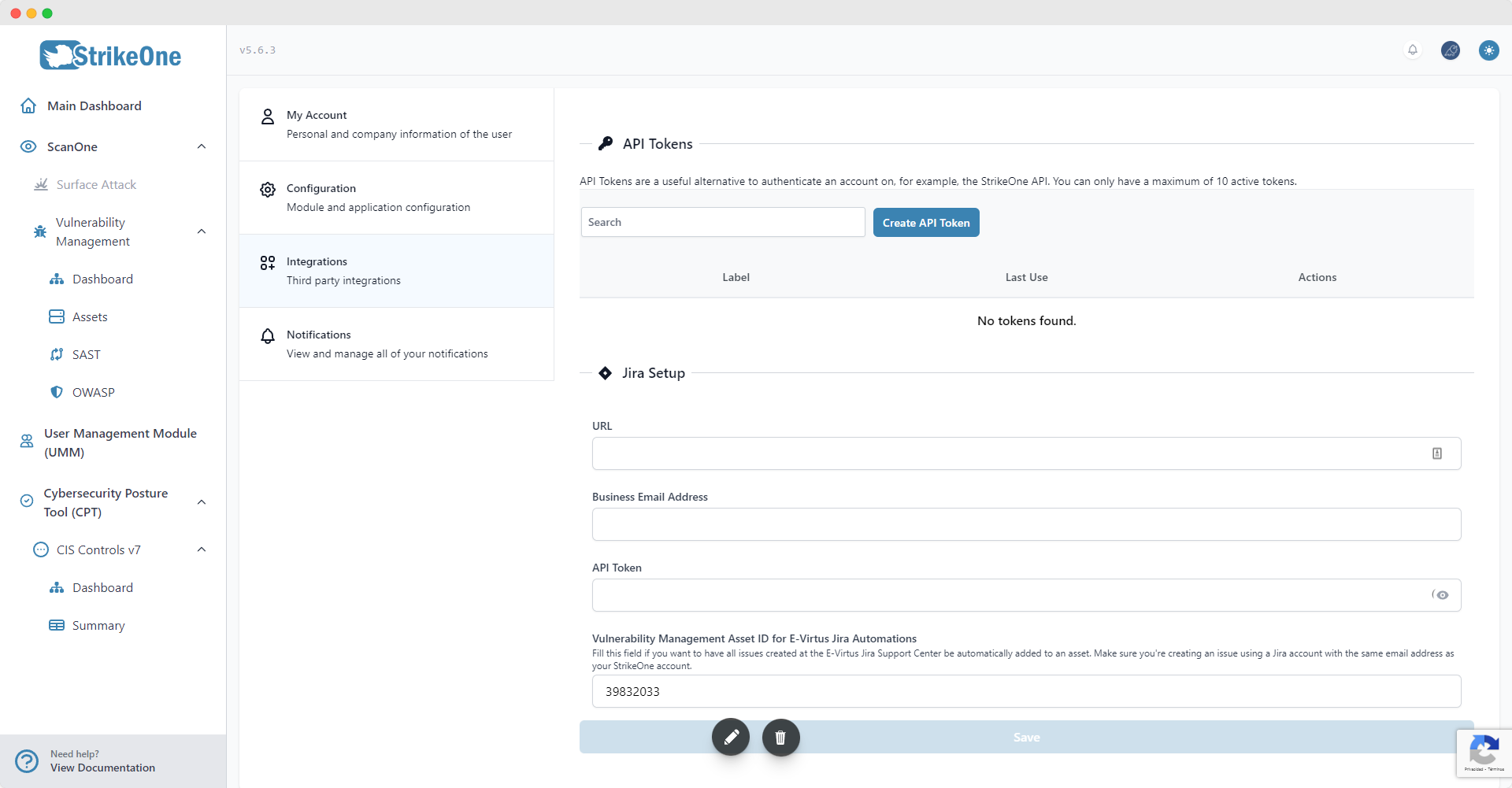
Integrating Jira is very simple. First, make sure to generate an API key for the account that you're going to use to utilize Jira's REST API. After that, head to the Integrations section of your profile and configure the integration by typing your API key, Atlassian email and the base URL for the page.
If you wish to automate your issues from the E-Virtus Support Center you can include a Vulnerability Management Asset ID. As a result, each time you open a new issue using the Support Center it will also be created in that asset. Your vulnerability will also automatically update depending on the issue's current status.
If needed, some fields can be left empty.
TIP
The API key is not shown even after being saved for security reasons.
Using the Integration
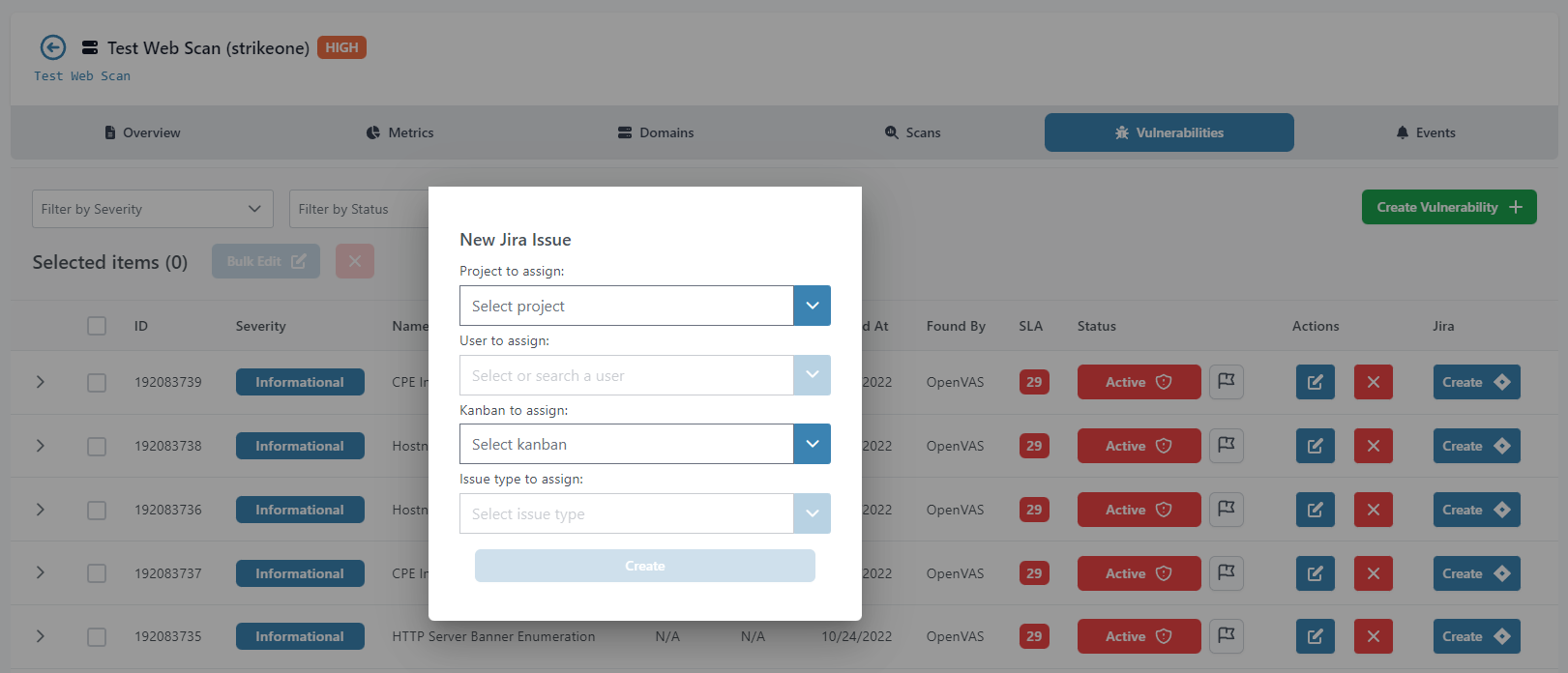
Usually, a modal with four dropdowns will be shown before creating a Jira issue. Users need to ensure that the credentials they're using have the appropiate permissions to retrieve projects, users, kanbans (boards) and issue types. After pressing create, an attempt will be made at creating the issue through Jira's REST API, and then moving it to the previously selected board.
TIP
The User to assign dropdown starts empty and requires the user to type the name (or part of it) of a user so it can be queried before returning any results.
IMPORTANT
Make sure that you're using Kanbans for your project and that the backlog is enabled before creating an issue.