
🐞 Vulnerability Management
Introduction
Vulnerability Management is a ScanOne submodule that allows users to manage vulneraiblities and automatize secure development processes - such as code analysis. The main element used in this submodule is called the Asset, which represent business assets and other devices like a server, a database, etc. Every domain, subdomain, scan, test, and vulnerability will be associated to a specific Asset.
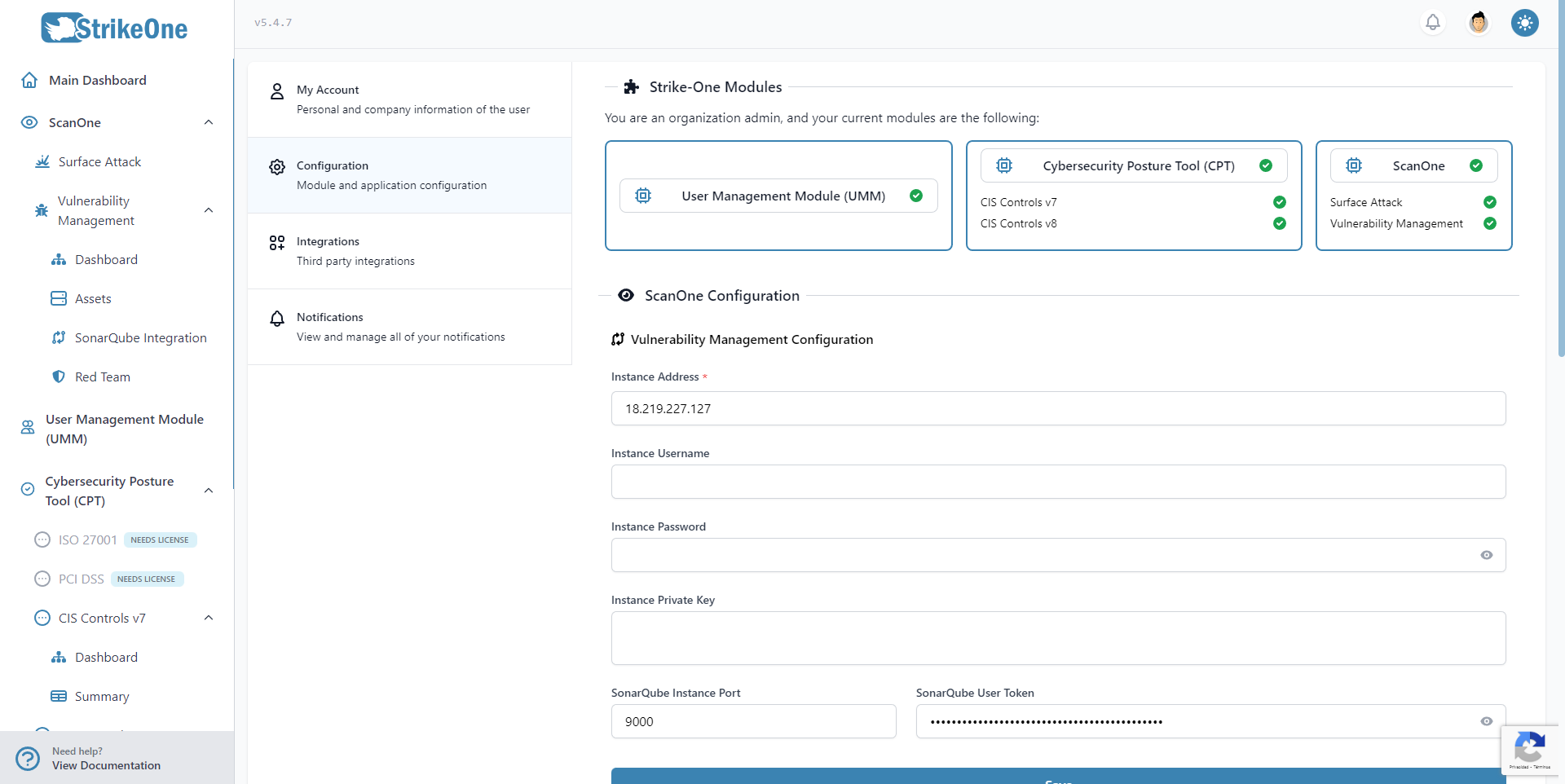
Some funcitonalities, like tests and the SonarQube integration require a ScanOne Instance to be previously set up. StrikeOne Admin will try to establish an SSH connection with the instance to utilize some of the tools that can be integrated with StrikeOne.
The aforementioned instance can be configured in your user profile. This includes the instance's IP address, username, password and/or private key, and other additional inputs required for other functionalities like a SonarQube port and user token.
IMPORTANT
- The ScanOne Instance needs StrikeOne Collector to be set up so its scripts can be used when integrating any of the useable tools, otherwise, they won't work.
ScanOne Instance
A ScanOne Instance corresponds to a server that will host all of the required scripts and tools that can be integrated with StrikeOne Admin. This instance must allow SSH connections to be made, in addition to the following requirements:
- The instance must be Linux based.
- The script package (StrikeOne Collector) must be located at
/opt/scanone/vuln-management - The StrikeOne Collector configuration file must be up to date.
- All tools to integrate must be properly set up.
You can read more about setting up the instance and its tools here.
StrikeOne Collector Tool Configuration
OpenVAS
StrikeOne Collector uses the OpenVAS Python driver python-gvm. All specific configurations that need to be made like the OpenVAS port, its IP address, etc, need to be made by modifying the config.ini file included in StrikeOne Collector.
OWASP ZAP
When executing an OWASP ZAP test, StrikeOne Collector will run the following command: sudo docker run --rm -v $PWD:/zap/wrk owasp/zap2docker-stable:latest zap-baseline.py. As a result, Docker, the owasp/zap2docker-stable:latest docker image and sudo permissions are required running the aforementioned command. Addiotionally, the resulting report will be saved on /home/ubuntu, read, and then moved to /opt/scanone/vuln-management/reports. Make sure to set up your permissions correctly before running a OWASP ZAP based test.
SonarQube
Vulnerability Management allows to import results directly from SonarQube, or to execute SonarScanner and then send the results to your local SonarQube instance so they can be imported into StrikeOne. Make sure SonarQube is up and running in your instance - and that you have configured a SonarQube port and user token prior to using the import feature for tests.
If you wish to execute a scan instead, you will need the latest sonarsource/sonar-scanner-cli Docker image installed. In addition, your SonarQube instance will have to be up and running if you wish to use SonarScanner.
When the analysis is performed, StrikeOne will import the results directly from SonarQube, just like if you were doing a result import.
OWASP Dependency Check
StrikeOne Collector will execute a bash script to conduct a dependecy check using this tool. This script will require Docker to be installed and it will try to pull the owasp/dependency-check image. This script will also attempt to clone the target repository and, additionally, will try to run yarn to install its modules.
Nuclei
Executing Nuclei will require Nuclei to be installed as a binary. A bash script will attempt to execute the nuclei command using sudo to start the analysis. Optionally, users can enter a comma separated list of templates to use. If left empty, Nuclei will instead utilize nuclei-templates as a template.
GitLeaks
GitLeaks needs to be installed as a binary. A bash script will attempt to execute the gitleaks command using sudo to start the analysis.
Horusec
Horusec needs to be installed as a binary. A bash script will attempt to execute the horusec command using sudo to start the analysis.
Dashboard

The Dashboard contains Asset and Integration related metrics. It's possible to export these metrics as an Excel file as well. The DevSecOps Status section will report on the current status of different tools located in your ScanOne Instance.
TIP
- The DevSecOps Status will only show a specific phase as active if there's at least one working tool located in your instance.
Assets
Introduction

This section will show your current Assets. Users can represent a business asset or any other type of object as an asset.
Import assets
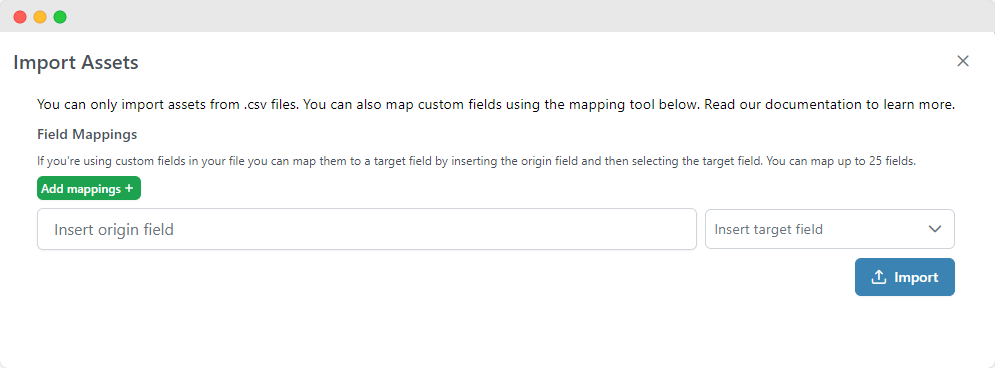
Users can also import assets directly from a .csv or .json file. To do this, click on the import button and then proceed with the import. You will be prompted to select a file to upload. File size is limited to 20 megabytes. If the import was successful, the new assets will be shown in the Assets page. You can also map fields if you're using a different schema from StrikeOne and even assign the same origin field to multiple target fields.
IMPORTANT
There's a series of fields and values that are required for the import operation to work. The list is as follows:
name: string
The following fields and values are optional:
desc: string | nullenvironment: "dev" | "pre_prod" | "prod" | "qa" | nulltype: string | nullicon: "default" | "database" | "desktop" | "phone" | "server" | "tablet" | nulltags: string | null (comma separated tags)businessCriticality: "very_high" | "high" | "medium" | "low" | "very_low" | nullsonarQubeProjectKey: string | null
Asset Overview
Metrics
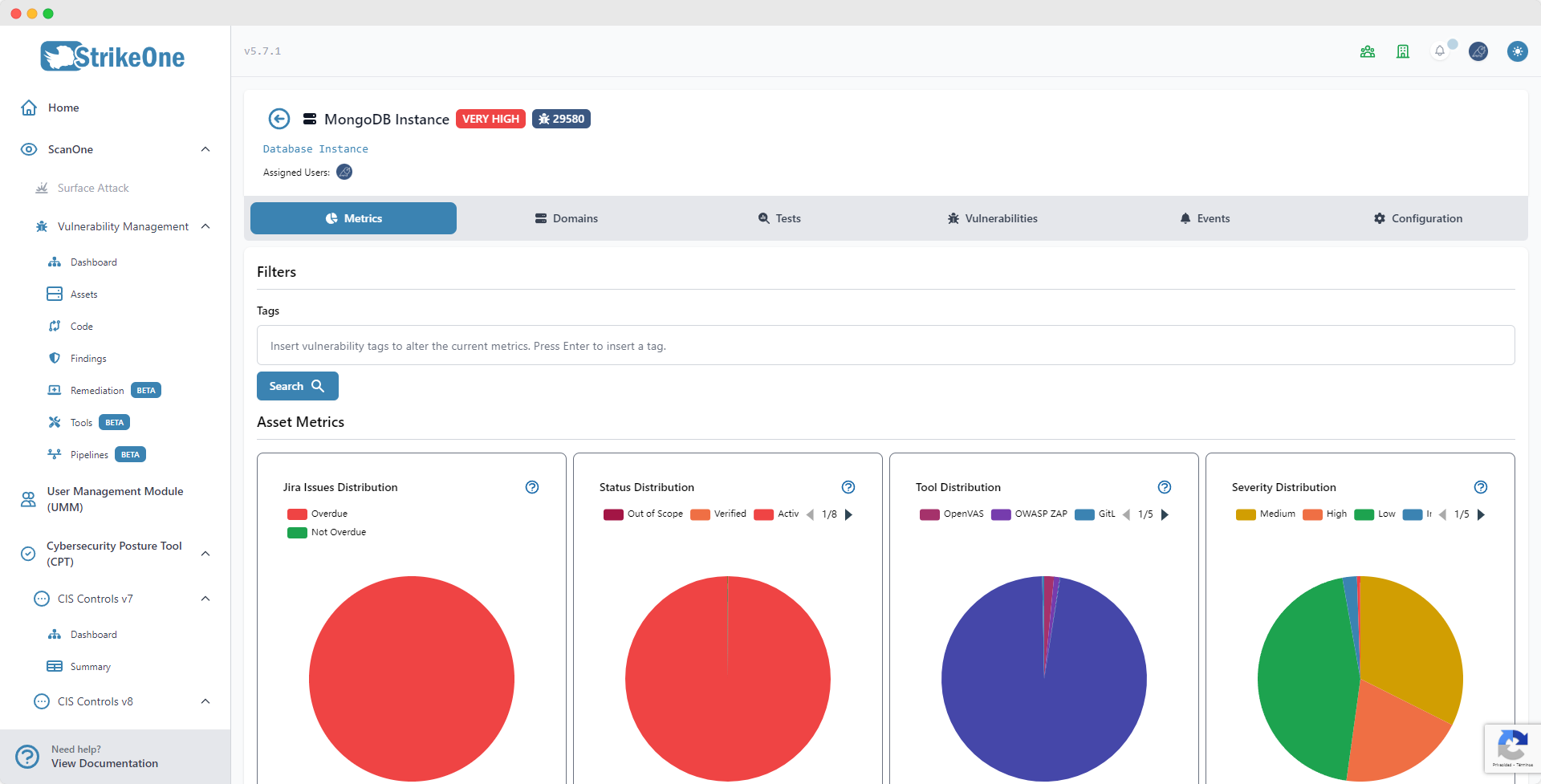
The metrics tab will show you in-depth metrics about the asset.
Domains
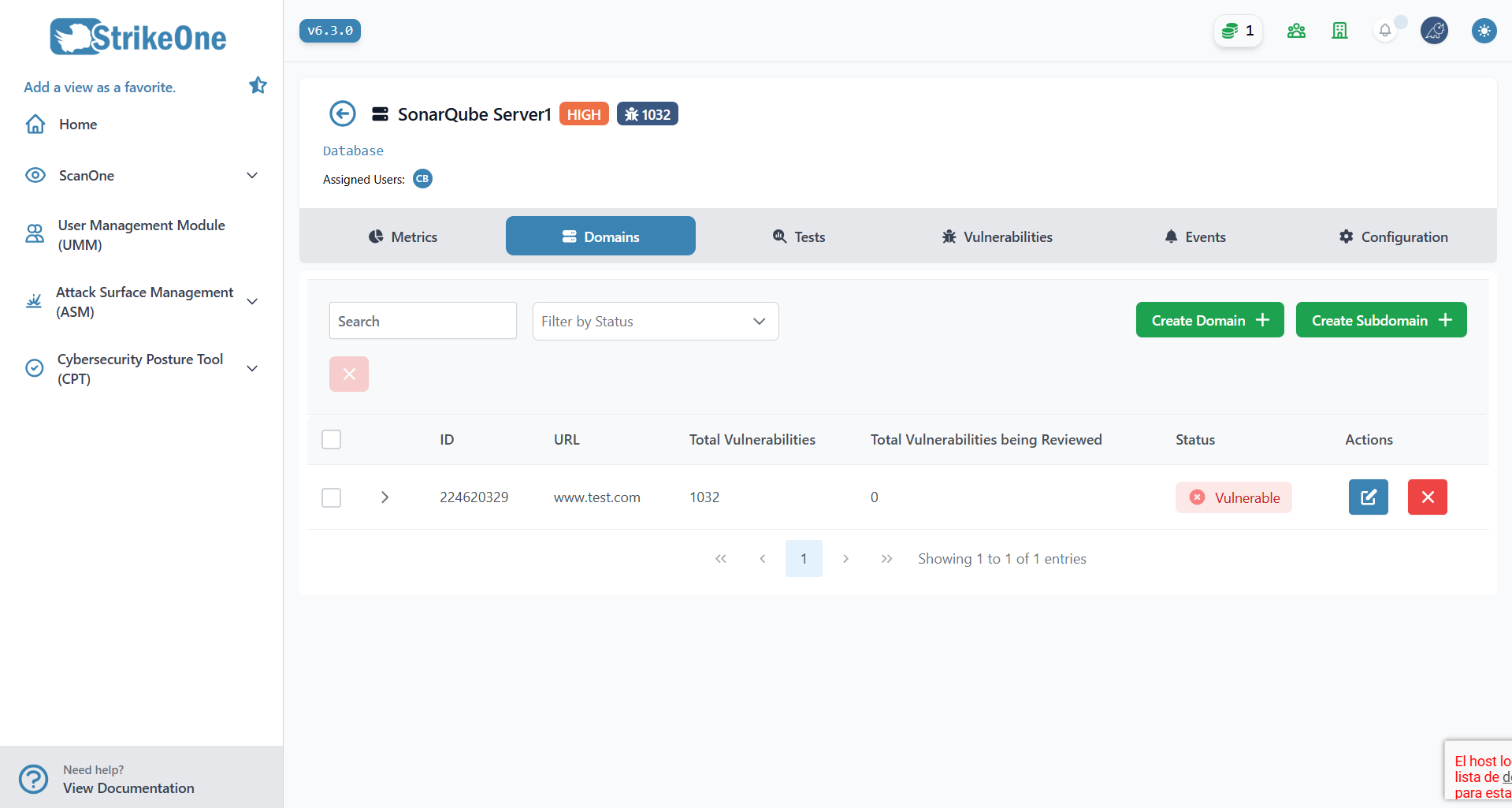
The domains tab will show all of the asset's domains and subdomains. Domains can be any valid IP or URL. Some tools, like OpenVAS, will try to scan a domain and all of its subdomains.
TIP
- All domains that have at least one vulnerability will be classified as
VULNERABLE - Tools that don't use domains for its results (like SonarQube) still require a domain that can be associated to the resulting vulnerabilities.
Tests
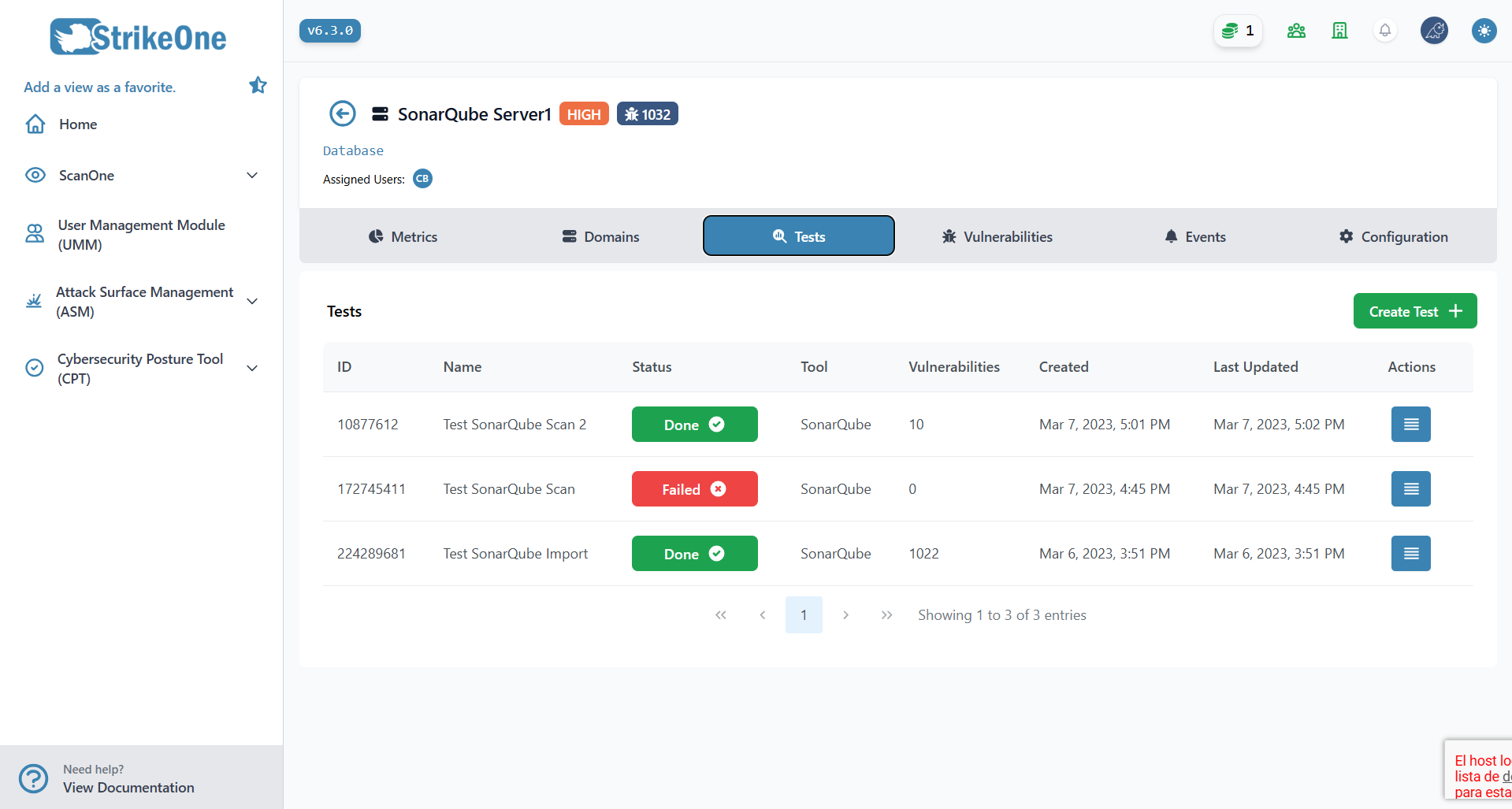
As explained above, Tests represent the execution of a specific tool. StrikeOne will attempt to remotely execute these tools on your ScanOne Instance. Execution time for each tool can range from just a couple minutes to many hours - this will depend on the tool and the user's instance.
Once your ScanOne Instance has been fully configured in your profile, you'll be able to execute tests. Each test requires a name, a domain to associate to any found vulnerabilities, and a particular tool to execute.
Some tools accept optional parameters, or may even require more parameters to function properly. Commonly, tools will require to clone a Git repository to analyze it, this is the case with some tools like GitLeaks or OWASP Dependency Check. The following parameters are required:
- A repository URL must be provided in order to run git clone. The repository URL must also include your credentials (a username and a token), below you'll find some examples. Remember that you can always use your provider of choice to generate or find your repo URL:
https://USER:[email protected]/USER_OR_ORGANIZATION/REPO.git

https://USER:[email protected]/GROUP/REPO.git

https://USER:[email protected]/ORGANIZATION/PROJECT/_git/REPO

https://USER:[email protected]/COLLECTION/PROJECT/_git/REPO

https://USER:[email protected]/USER_REPO/PROJECT_REPO.git
- The repository's name must be provided in order to read the contents of the folder that will be cloned. This value must be the same as the repository's name, or the test execution will fail.
IMPORTANT
It's not necessary for the repo name value to be the same as the repository's name itself if using curl. However, do bear in mind that SonarScanner will use this value as the project key. This means that if the value is similar but not equal to an already existing project key (i.e using 'RepoName' when there's already a project that uses 'reponame' as project key) will result in failure. Using a value that is equal to an already existing project key, or one that isn't equal to any will ensure the scan is performed correctly.
The repository branch to clone is also required. This value is not required if curl is being used.
Users will also be capable of using curl instead of git clone. This is useful for certain scenarios where users might need to download a repository as a .zip file, and then unpack it - for example, downloading and unpacking a TFVC repo using the Azure API. Below you will find an example of how the repo URL would look like if trying to download a TFVC repo. If you wish to learn more about this, you can read the Azure DevOps API docs.
https://ORGANIZATION:[email protected]/ORGANIZATION/_apis/tfvc/items?path=$/EXAMPLE-PROJECT&api-version=5.0&download=true&organization=ORGANIZATION
All new tests will be immediately added to the scan's test list. The list will be updated in realtime depending if the test failed or was completed. Not every tool offers a progress tracker, so most tests will simply jump to 100% once they're complete.
Additionally, some tools allow to import results directly from them, and such tool is SonarQube. Please keep in mind that SonarQube requires an asset to have a SonarQube Project Key before being able to use the import feature.
Tests also possess overview which shows a list of all found vulnerabilities that are associated to that specific test.
Its possible to execute tests externally through our API. If you wish to integrate StrikeOne to a CI/CD tool, read our documentation on Integrations.
Vulnerabilities
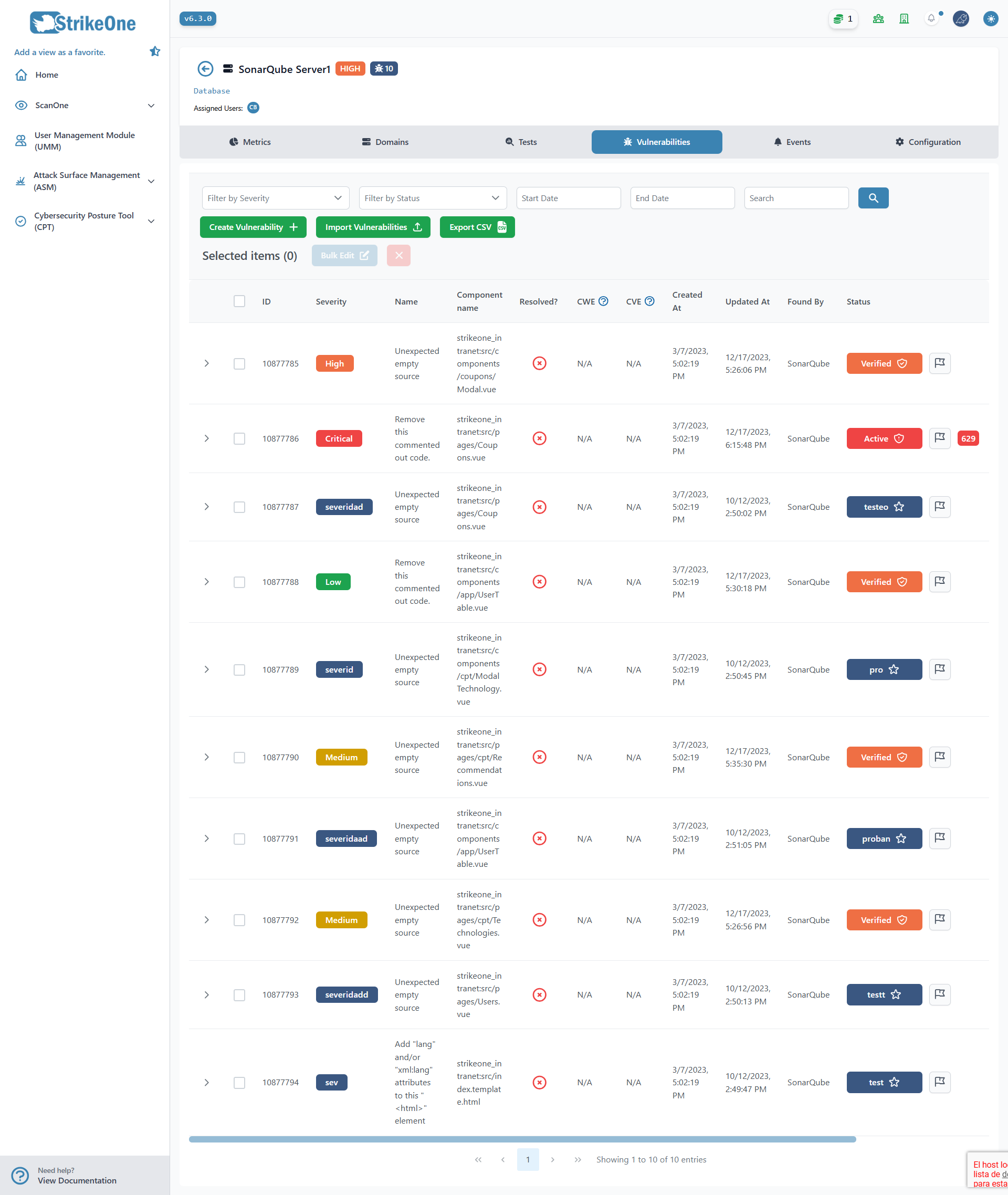
In this tab you can preview all of the asset's vulnerabilities - which can be created through tests, or manually. Each vulnerability has a prioritization status, if a vulnerability is prioritized, it will be added to the Findings view.
Assigning a vulnerability to one or more users will enable you to visualize that vulnerability in the Remediation view. Furthermore, all resolved vulnerabilities will not be counted when obtaining most metrics.
This tab also permits the creation, importation, and exportation of vulnerabilities; the export method will be in Excel format for subsequent use and visualization.
TIP
- We recommend using the Test Overview page that can be accessed from the Tests tab if you wish to only see the vulnerabilities found in that particular test.
TIP
- The column that allows to assign a Jira issue to a vulnerability will only appear if Jira is properly integrated.
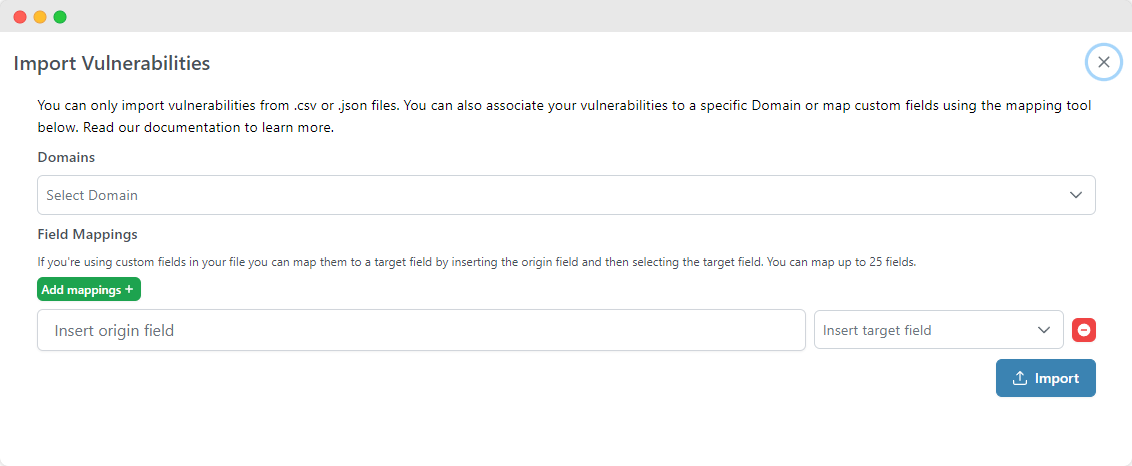
Users can also import vulnerabilities directly from a .csv or .json file. To do this, click on the import button and then proceed with the import. You will be prompted to select a file to upload. File size is limited to 20 megabytes. If the import was successful, the new vulnerabilities will be shown in the Vulnerabilities tab. You can also map fields if you're using a different schema from StrikeOne and even assign the same origin field to target fields.
IMPORTANT
There's a series of fields and values that are required for the import operation to work. The list is as follows:
name: stringstatus: "active" | "accepted" | "closed" | "duplicate" | "false_positive" | "out_of_scope" | "reviewing" | "verified" (or any custom status name)severity: "critical" | "high" | "medium" | "low" | "info" (or any custom severity name)
The following fields and values are optional:
cveId: string | nullcwe: string | nullcvssv3: string | nulldesc: string | nullmitigation: string | nullimpact: string | nullrequest: string | nullresponse: string | nullstepsToReproduce: string | nullseverityJustification: string | nullscanType: "sast" | "dast" | "secret_scanning" | "sca"foundBy: "manual" | TOOL_NAME | nullsonarQubeIssueType: string | nulllineNumber: string | nullfilePath: string | nullcomponentName: string | nullcomponentVersion: string | nullprioritized: "true" | "false"resolved: "true" | "false"tags: string | null (comma separated tags)
Events
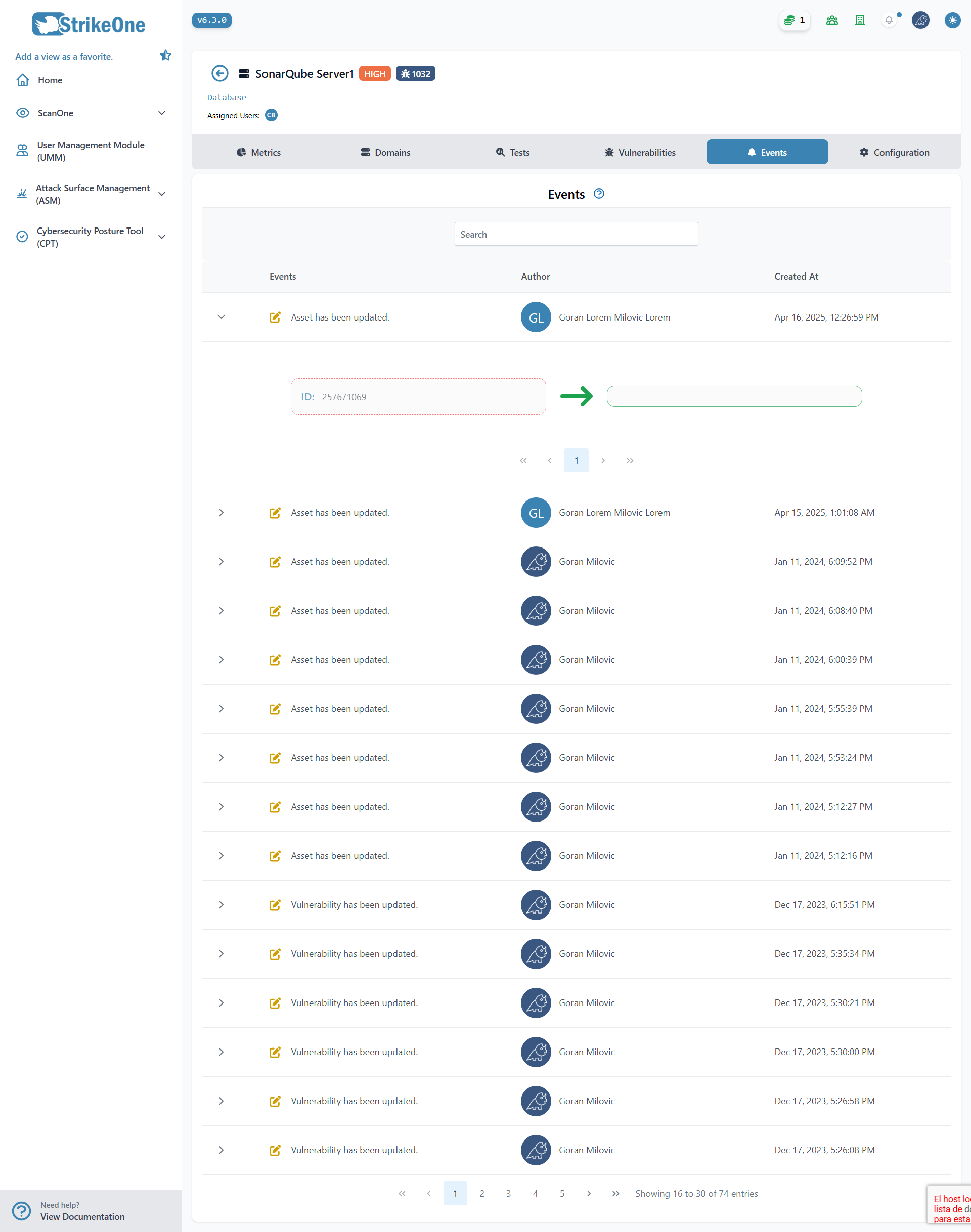
The events tab will list all events that have been triggered from within a specific asset. Each event will offer a detailed description of new, updated, and deleted elements.
Configuration
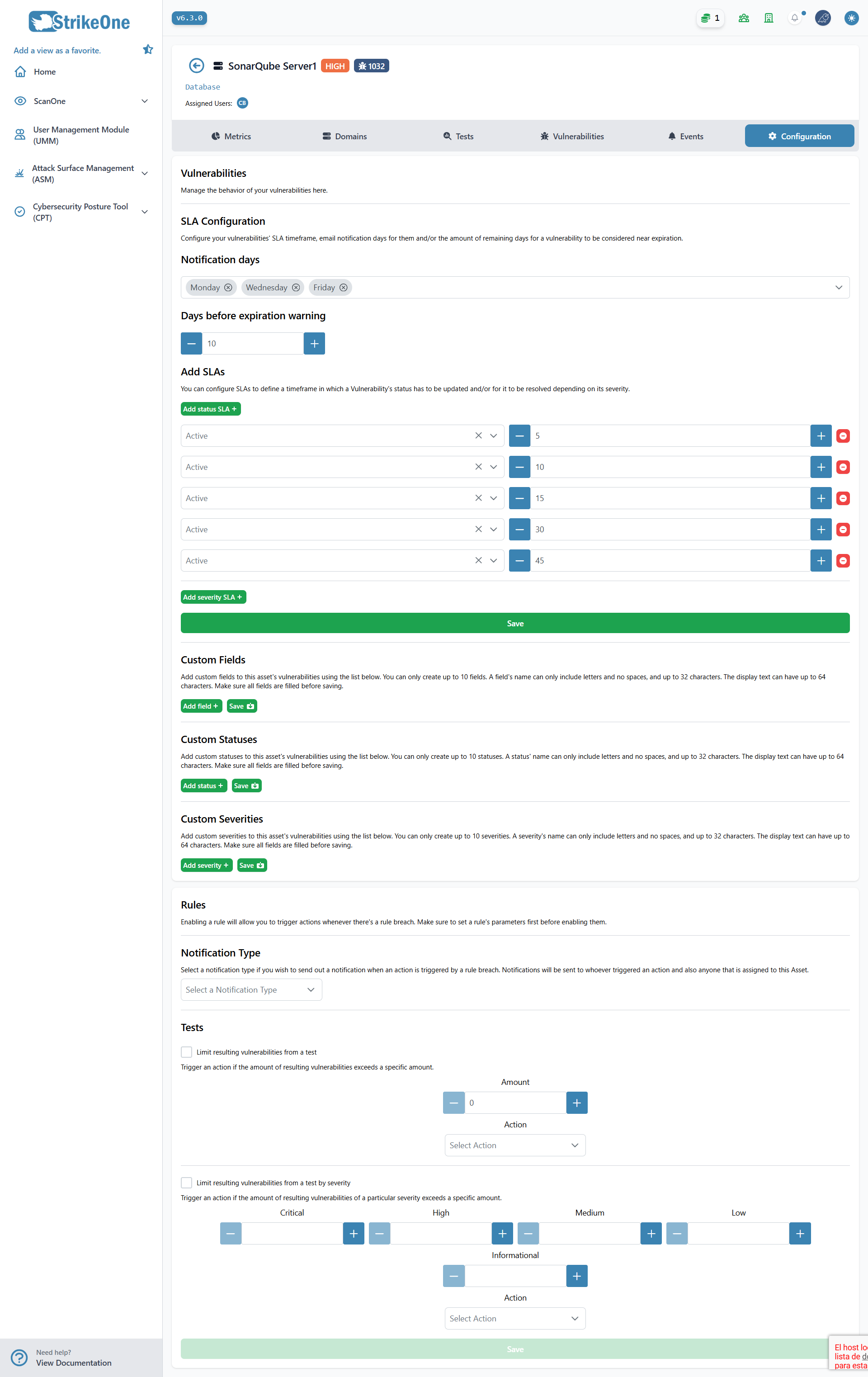
This tab will allow users to alter the behavior of certain aspects of their asset. You can define SLAs for each status or severity type and also notification days for each SLA notification. Users are also capable of adding new custom fields, statuses and severities to their vulnerabilities.
Additionally, users can update that particular asset's ruleset. For example, you can limit the amount of resulting vulnerabilities from an executed test and perform a certain action if that rule is broken. In addition, users can specify what type of notification should be sent out if a rule is broken. The notification type may be email and system, email only, system only, or none.
IMPORTANT
Organization members need manage assets permissions to gain access to this tab.
Do keep in mind all status SLAs are only updated when the Status field of a Vulnerability is updated, additionally, severity SLAs are updated when the resolution field changes.
Code (SonarQube Integration)
Introduction
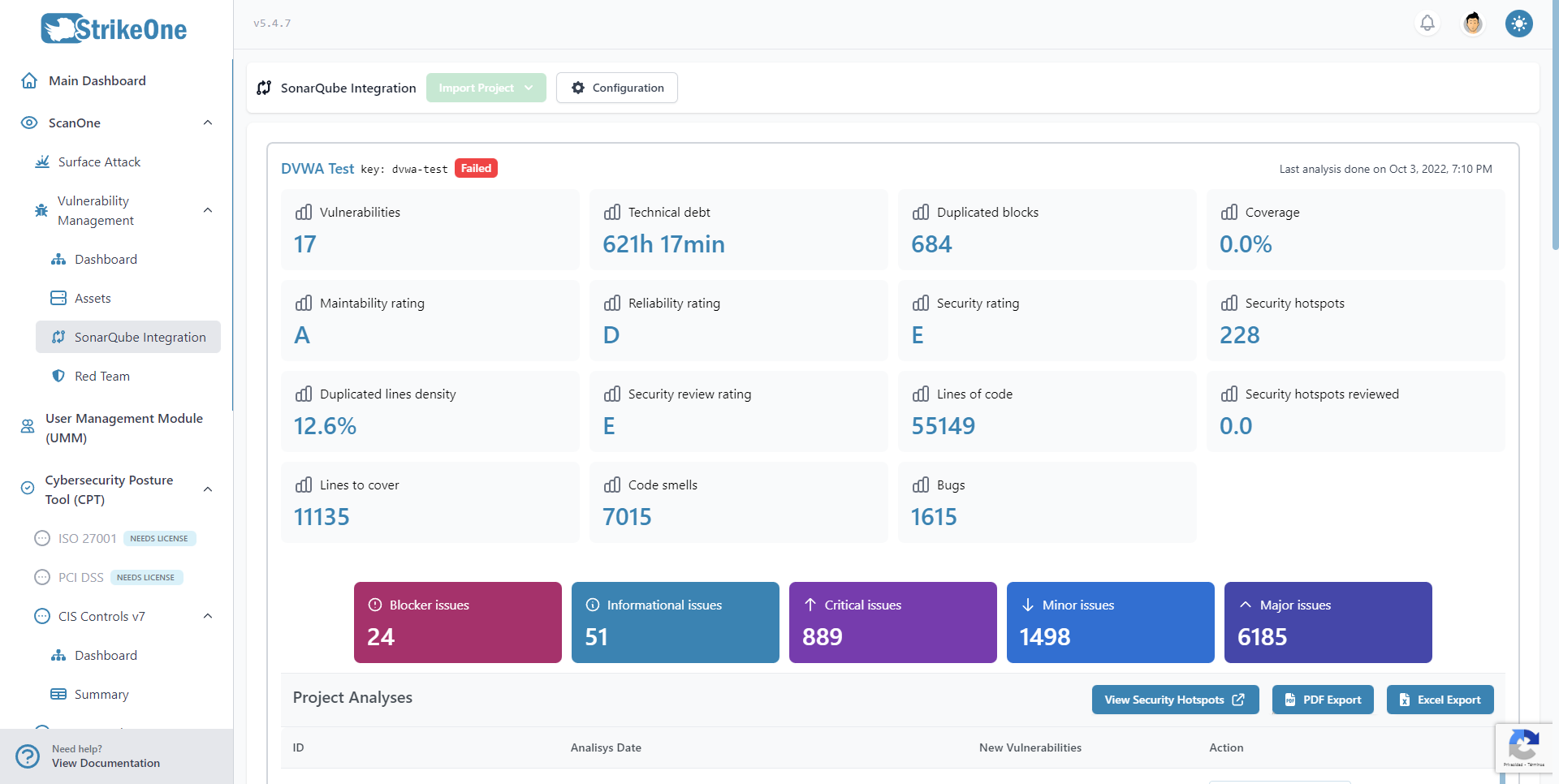
The Code view allows users to visualize SonarQube projects and analysis from StrikeOne Admin, and also import new projects to that SonarQube instance from GitHub, GitLab, Azure DevOps or Bitbucket Cloud. A project's status and other relevant metrics can be found in the project list.
Furthermore, it's also possible to view a project's Security Hotspots or export its results as a PDF or an Excel file.
A working instance is needed to use this integration.
TIP
- The integration view won't work if SonarQube isn't set up, or if the SonarQube Web API can't be reached.
Findings
Introduction
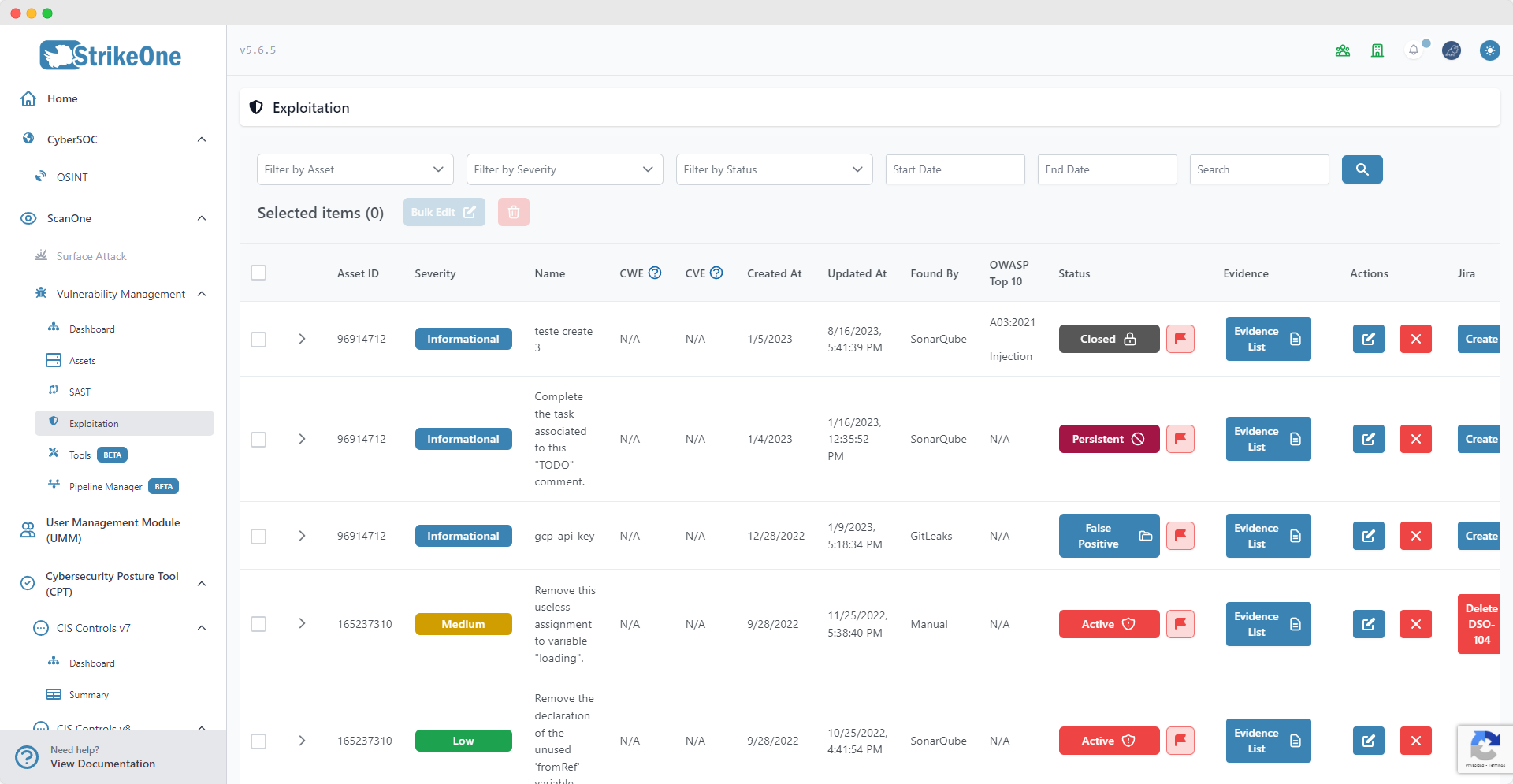
This page will show a list of all prioritized vulnerabilities. These vulnerabilities can be managed and, additionally, evidence can be uploaded for each of them.
Evidence

A maximum of 5 evidence files are allowed per vulnerability
Remediation (BETA)
Introduction
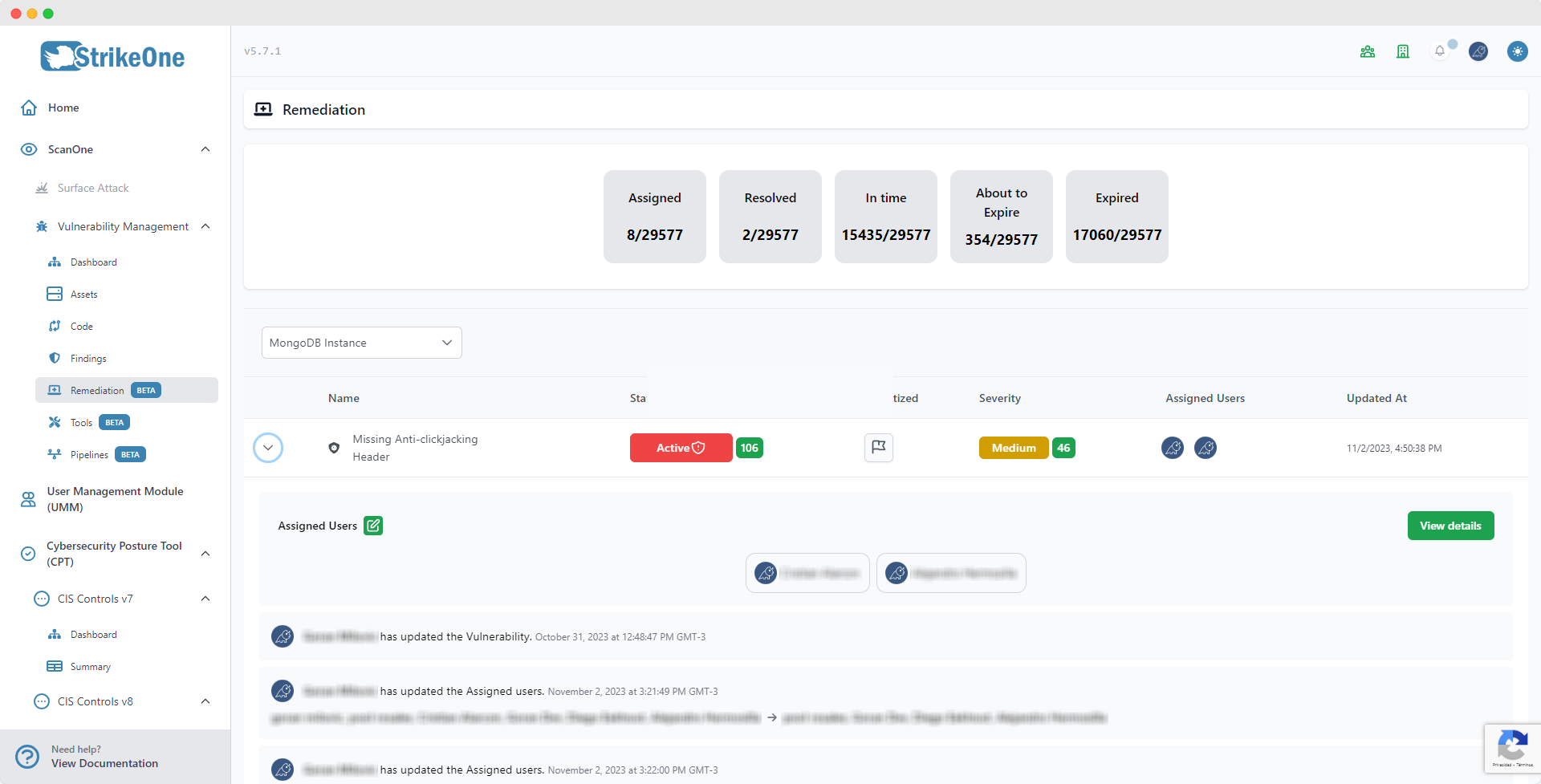
The Remediation view allows users to visualize all vulnerabilities that have been assigned to at least one user.
Tools (BETA)
Introduction
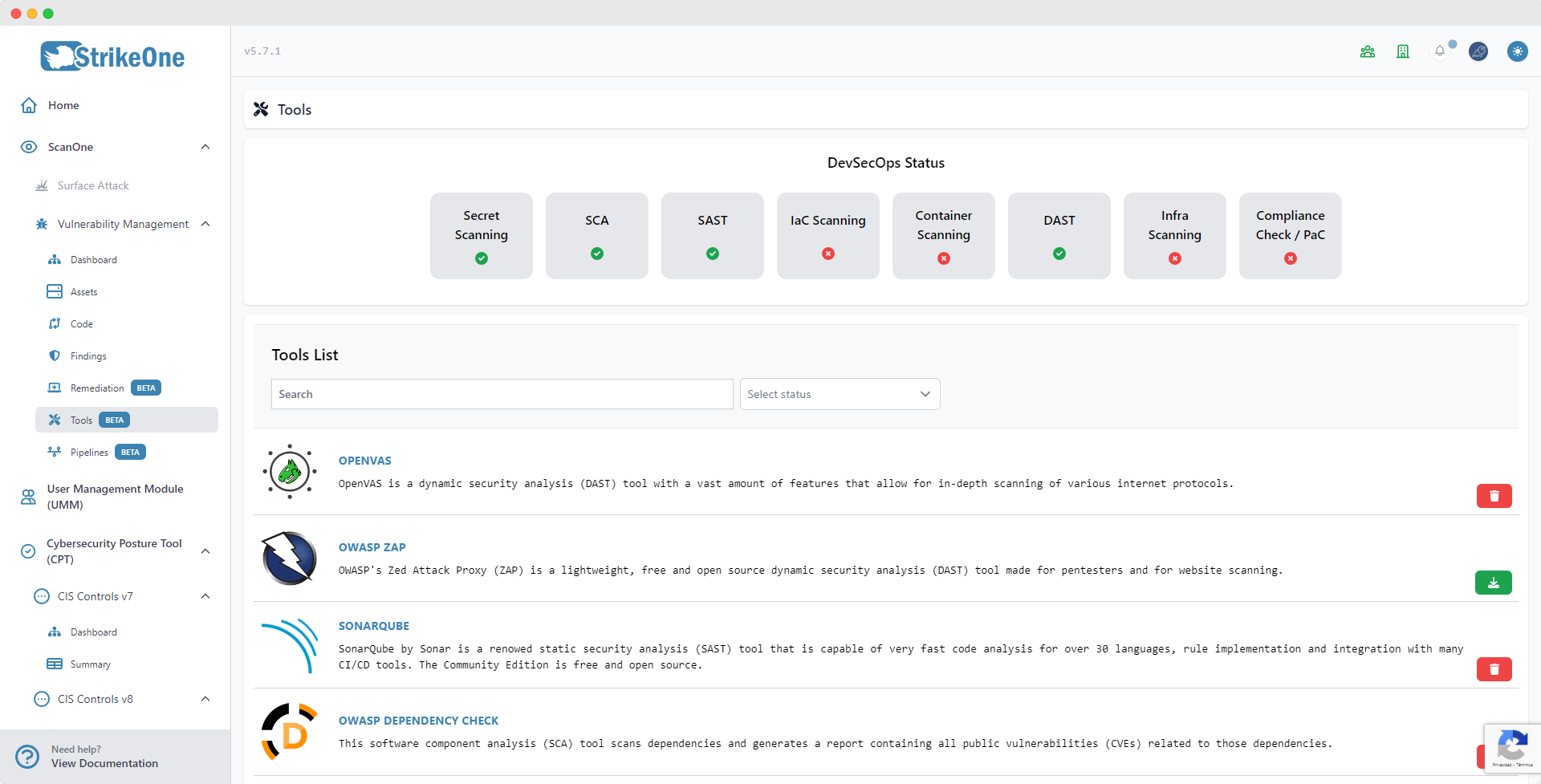
This view will allow users to manage all tools that are currently installed on their ScanOne Instance.
Pipelines (BETA)
Introduction
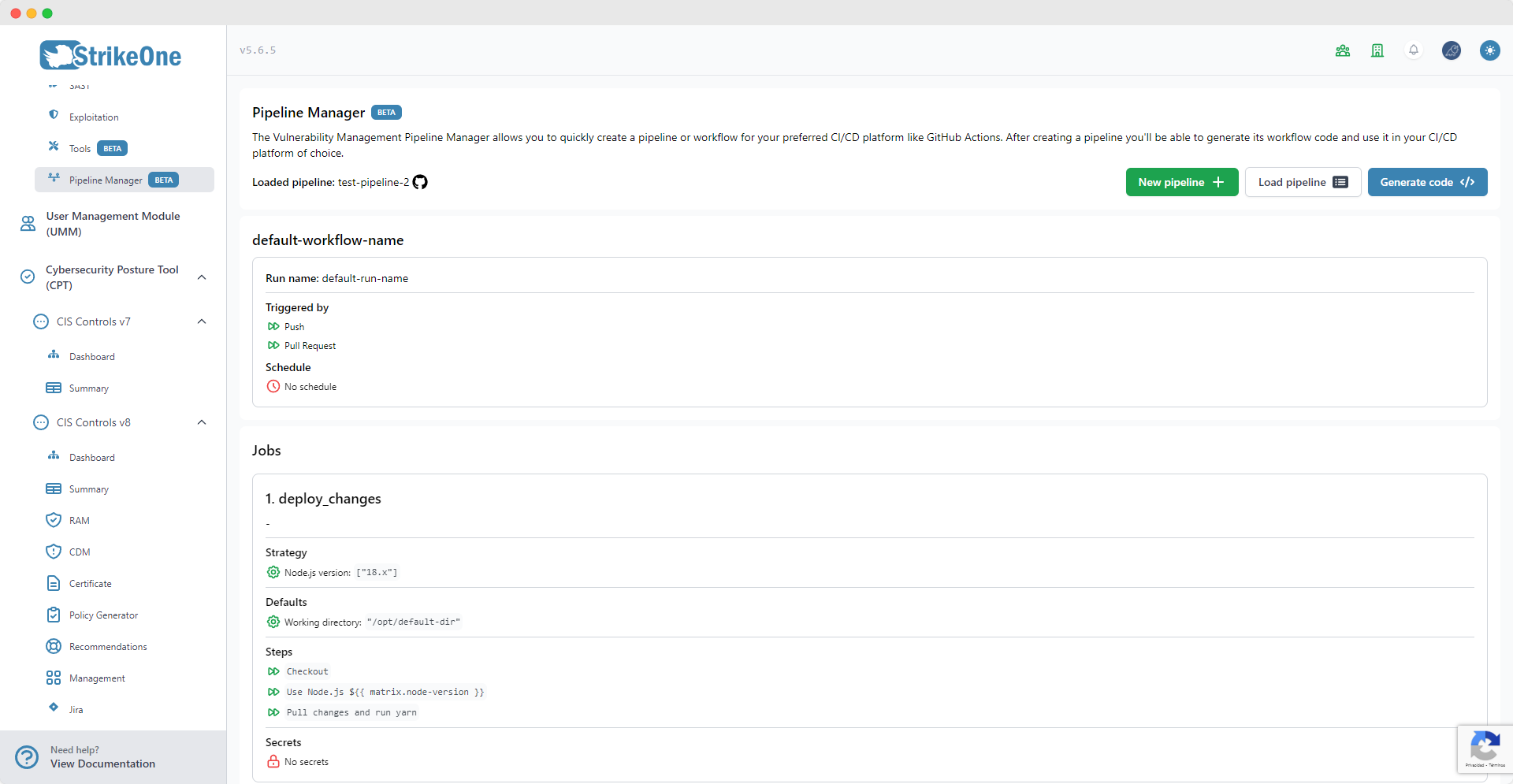
The Vulnerability Management Pipelines view allows you to quickly create a pipeline or workflow for your preferred CI/CD platform like GitHub Actions. After creating a pipeline you'll be able to generate its workflow code and use it in your CI/CD platform of choice.
Click on the New pipeline button if you wish to create a new pipeline, you will be redirected to the pipeline creator page.
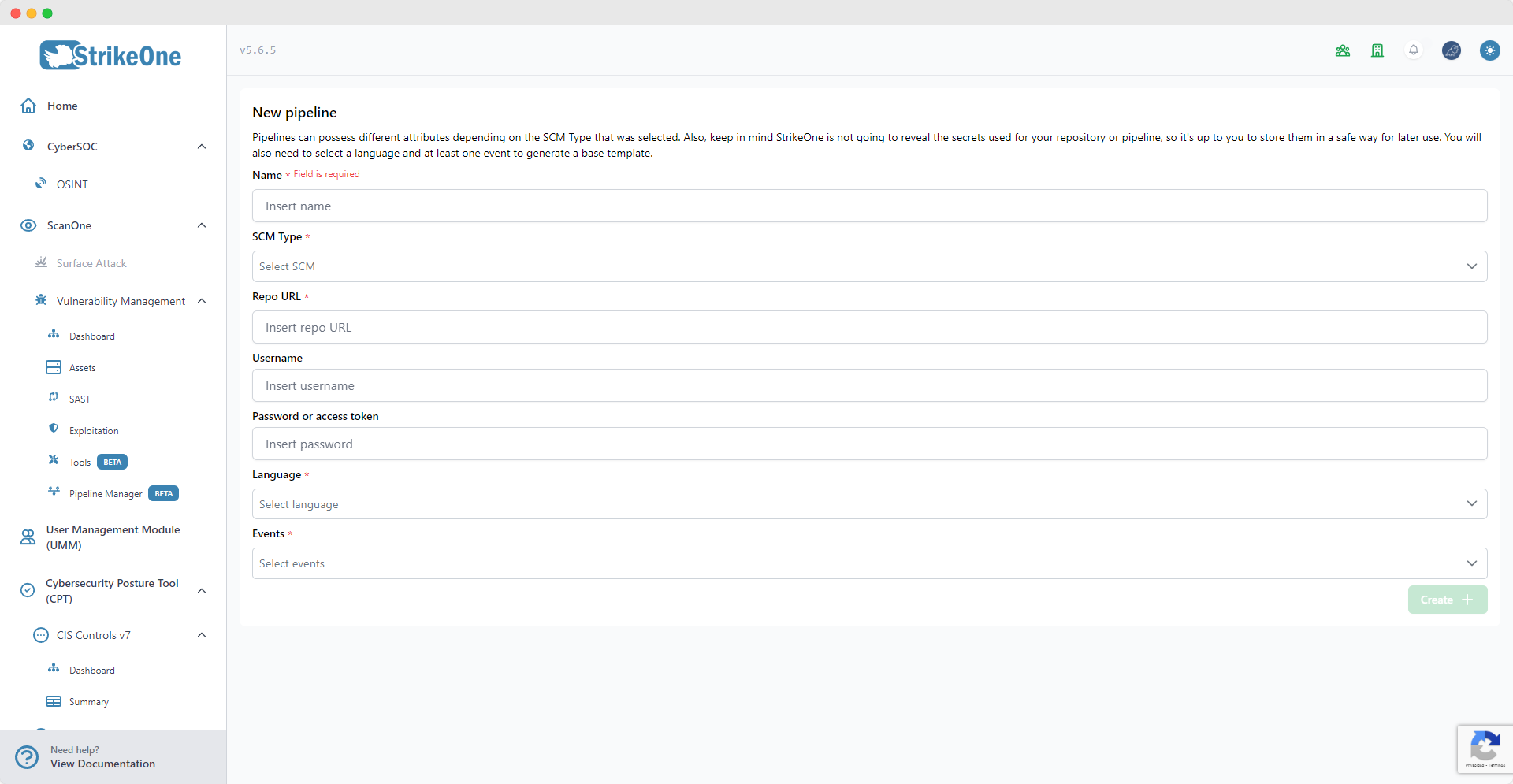
The pipeline creator will ask you to define a series of parameters. Currently, all repository related fields (URL, username, password) are unused, but you will still be required to type the repository's URL.
The Languages and Events dropdowns will let you define the pipeline's structure and code to generate. Keep in mind that you should select a language that suits your project, and the events that you will use in your pipeline template.
IMPORTANT
The repository password or token field won't be revealed after creating a pipeline. Make sure to store your credentials safely before proceeding.
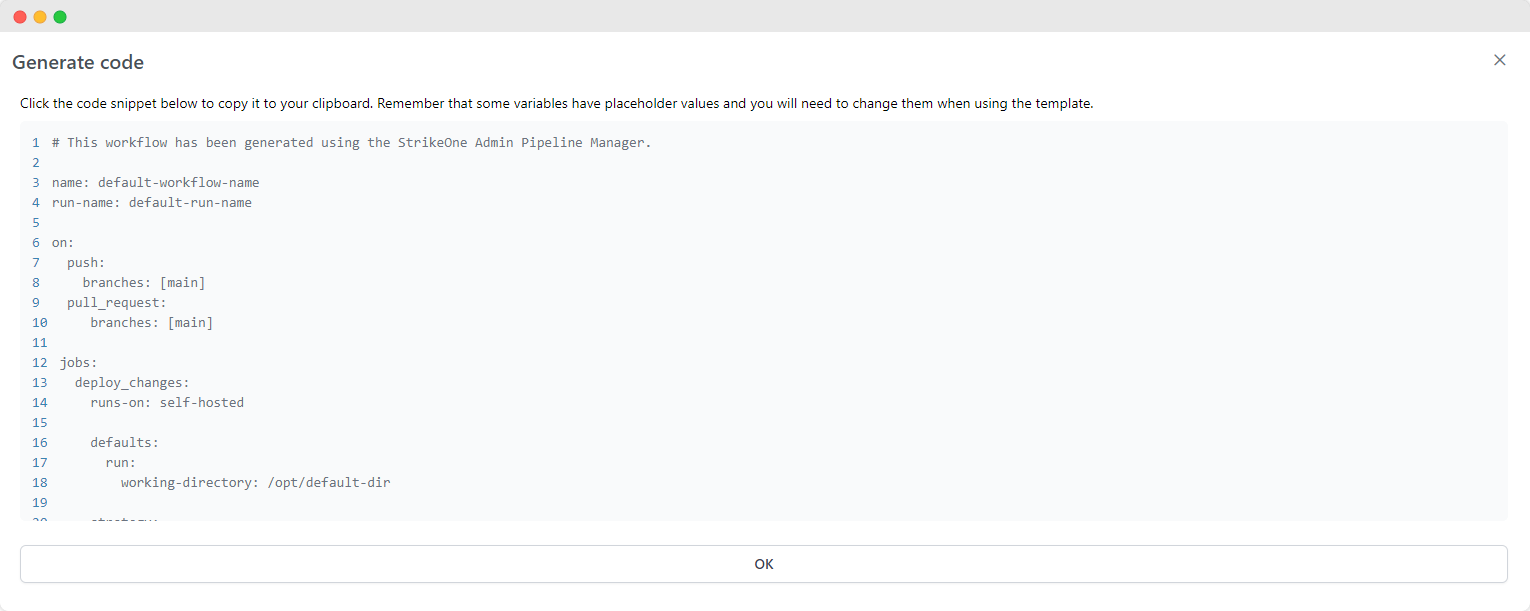
To generate a code snippet for your pipeline simply head back to Pipelines' main view and click on Generate code.